
Workspace and team
Choose the right workspace, invite an operator, and understand which role controls which actions.
A workspace is the context in which you build and operate automations. Start here when a colleague cannot find a workflow, needs access to build one, or should work in an isolated space under your organization.
Choose the scope before acting
The app's Workspace selector determines which workspace you are operating in. Workflows, sessions, inbox messages, credentials, and integrations follow their access scopes. A missing workflow can mean that you selected a different workspace; it does not necessarily mean it was deleted.
Team has an additional Managing team for selector. Its description says Switch team scope without changing your app workspace. This lets an administrator inspect membership for a workspace without moving their own workbench into it. Check this selector before editing a role or inviting someone.
For example, if you build a guide-review workflow in a documentation workspace but manage the parent organization's team, those are two different contexts. Return to the intended team scope before assigning access to the example.
Invite a colleague
Open Team → Invite to RamAIn. The form supports one or more invitation rows.
- Enter the colleague's business email address. Check spelling and the domain before sending.
- Choose the role for that row. The current choices are Admin, Builder, and User.
- Review the workspace or additional scope controls offered for your organization.
- Use Add another invite for another person. Use the row's remove control to discard an unwanted entry.
- Review every row, then select Send Invitation when the list is correct.
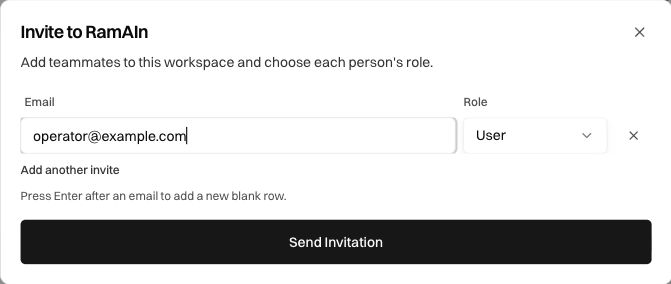
The form prepares access; the colleague must still complete the invitation and sign in. Inspect their membership status in Team if they cannot open the workspace. Sending another invitation to a different address does not repair a sign-in made with the wrong account.
Choose a role deliberately
Role names describe responsibility; individual controls also depend on workspace permissions and enabled features. dev-admin is a separate platform privilege. Making a colleague a workspace Admin does not give them internal monetary analytics or provision a Windows desktop.
After a role change, have the colleague reopen the relevant page in the correct workspace. If a control remains absent, identify the exact capability they need instead of repeatedly raising unrelated permissions.
Create a workspace under an organization
Where available, New workspace opens a creation form under the named organization.
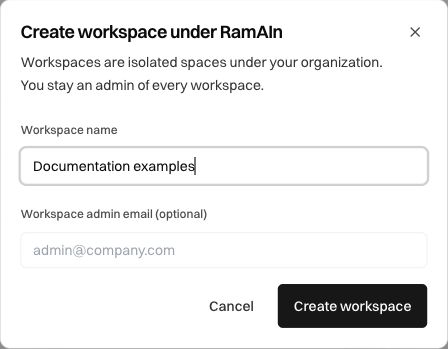
Enter a name that tells operators what belongs there, such as Documentation examples or a particular team. The Workspace admin email is optional. The dialog explains that the creating administrator remains an admin of the organization's workspaces.
Before selecting Create workspace, check the parent organization and whether an existing workspace already serves the purpose. After creation, select the new space in the app and verify its team scope before adding workflows or credentials. Do not assume that records or integrations from the parent have automatically been copied into it.
Inspect membership and administrative activity
The Team list shows names, email addresses, statuses, roles, and available actions. Org Chart offers another view of the organization where enabled. Changing the presentation does not change membership.
Use Audit where your role permits it to investigate recorded administrative actions. For an access question, retain the affected workspace, account email, approximate time, and the action that was denied. For an execution question, retain the workflow and run identifiers as well.
Resolve common access problems
Continue with Usage and access for credits and analytics, or Integrations to connect a service in the intended workspace.
Was this page helpful?