
Passwords and credentials
Organize credentials by website, understand login and two-factor fields, and use protected references in workflows.
Open the right workspace and website
Open Passwords in the workspace sidebar. Credentials are grouped by website so agents can find the appropriate sign-in details for a destination. Use Search websites to locate an existing site before adding another entry.
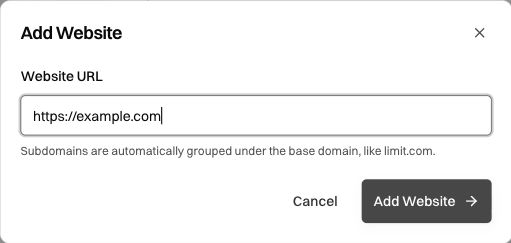
To add a site, select Add Website, enter its URL, and confirm. The dialog explains that subdomains are grouped under the base domain. Use the actual destination the workflow signs into rather than an unrelated company homepage.
Select the website, then choose Add Credentials. You need the appropriate credential-management permission; a missing add/edit control can be a role limitation rather than a loading failure.
Add a login
The Login tab contains Credential Name, Username or Email, and Password.
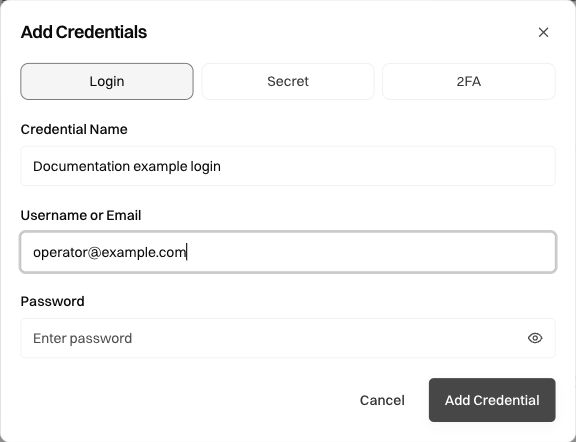
Use the fields for distinct purposes:
Select Add Credential when the values are correct, then verify the entry appears under the intended website. A descriptive name such as “Test operations login” is easier to distinguish than several entries all called “Login.” Use the entry's edit controls when rotating or correcting credentials.
Store a standalone secret or two-factor setup
Use Secret for a protected value that is not a username/password pair. Name it so the workflow can distinguish its purpose from the site's login credential.
Use 2FA for a TOTP setup seed. This is the reusable setup material used to generate time-based codes, not a one-time code currently displayed by an authenticator.
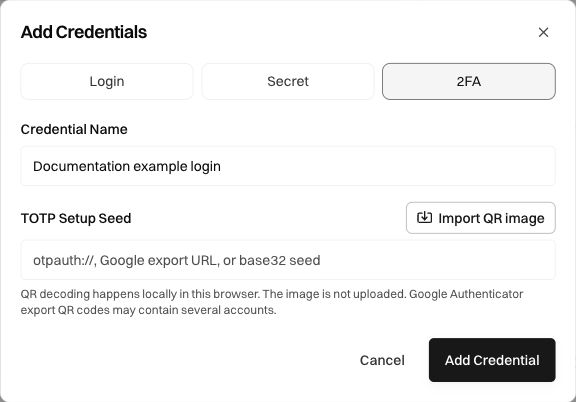
The field describes supported forms such as an otpauth:// URI, a Google export URL, or a base32 seed. Import QR image offers the supported QR route. The dialog states that QR decoding happens locally and that Google Authenticator exports may contain multiple accounts, so verify the selected account before saving.
A setup seed and a temporary challenge answer serve different roles. When a run asks for a one-time code or manual verification, answer the active prompt through the offered flow instead of replacing a stored seed with a transient code.
Reference credentials in a workflow
Use the saved credential's #key reference in Builder or Editor instructions. For example:
Sign in to the portal using #portal_login. If the saved browser session has expired, use that credential again and ask for any additional verification required by the site.
Use the actual reference shown for your saved entry; #portal_login above is illustrative. The runtime resolves protected values server-side, and credential references should stay out of ordinary launch-input fields. An operator should not need to paste the secret into a workflow question on each run.
A key reference is not the secret itself. If you rename or remove a credential, review dependent workflows and test their sign-in path. If a workflow keeps asking for a password as ordinary input, update the definition to use the saved reference and verify the compiled input schema.
Understand imports and connected vaults
The page distinguishes Live sync from One-time import. A connected vault can have an active or expired connection; an export-file import is a separate operation. Use the status and controls actually present in your workspace rather than assuming all environments have the same vault configuration.
Choose Import Source supports the displayed browser-export, 1Password-export, or compatible CSV paths. Before importing, inspect the source and use the offered matching behavior. The page explains that 1Password items are matched by website URL. After import, verify the intended website and account instead of assuming a successful file selection created the correct credential.
If a live connection expires, reconnect through its supported flow and verify that syncing resumes. Reconnecting an existing vault is different from importing another copy of its export file.
Browser persistence and expired sessions
Cache Persistence can keep cookies and local storage between launches. It can reduce repeated sign-ins, but the target site may still expire a session or request a challenge. Keep the credential reference and the missing-login path explicit even when the normal run starts already signed in.
If sign-in fails, check the destination website, selected account, credential reference, current password, and any additional challenge. Avoid repeatedly submitting a known-wrong value. Review the current run's prompt and evidence before choosing a recovery action.
Review screenshots before sharing
Protected storage governs how the secret is supplied; a target site can still display account information or other sensitive content. Review the browser evidence, SOP screenshots, and output before sharing them outside the workspace. Documentation screenshots should show empty secret fields or safe example values, as the captures on this page do.
Was this page helpful?