
SOP document and screenshots
Turn the saved workflow into a readable procedure, edit its instructions, and attach the right recorded screen to each step.
Open the written procedure
Open a compiled workflow, select Editor, then choose SOP in the canvas toolbar. If you are still demonstrating the task in Builder, finish the demonstration and select Save first. Compilation creates the blocks and instructions that this document displays.
The SOP is the workflow's written procedure. It shows what the workflow needs to start, what each task should do, when that task is finished, and what it should report. Graph and SOP are two views of the same saved definition: a direct edit here changes the corresponding graph field.
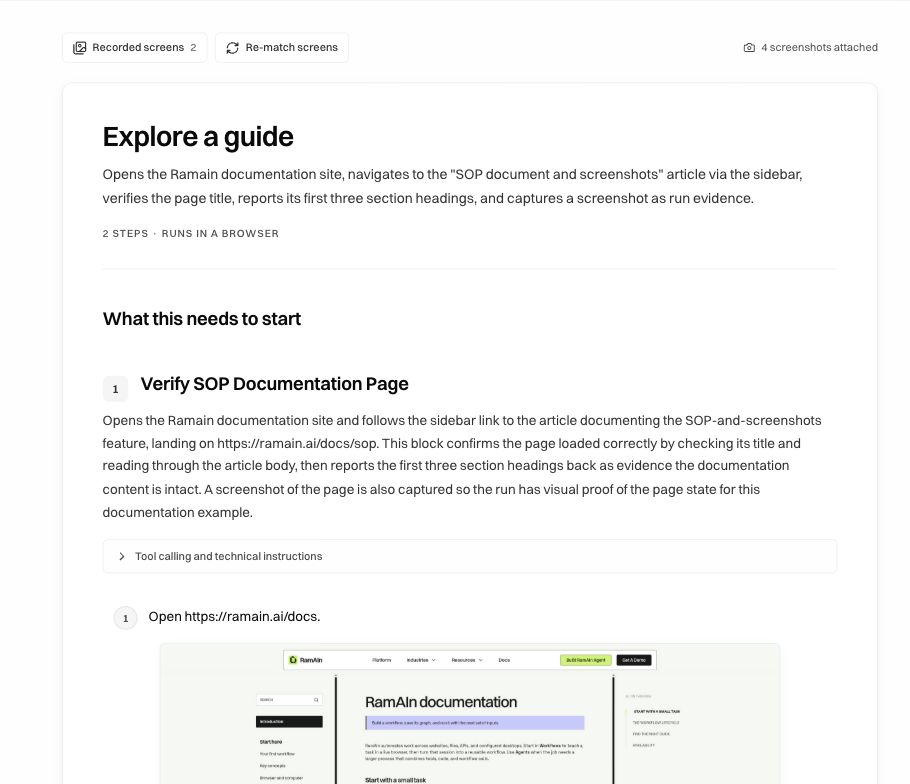
Start by reading the document from top to bottom as if you were the person performing the task. Can you identify the starting page, the value to enter, the control to choose, and the evidence of success without asking the original author? A procedure such as “process the page” needs more detail before it is useful for either a reviewer or a future run.
Understand the parts of the document
Tool calling and technical instructions can expose additional execution detail. Review it when a procedure depends on a particular tool or data contract; the ordinary numbered instructions should still explain the task clearly.
Edit an instruction directly
Click an instruction's text to turn it into an editable field. For example, change:
Open https://ramain.ai/docs.
into:
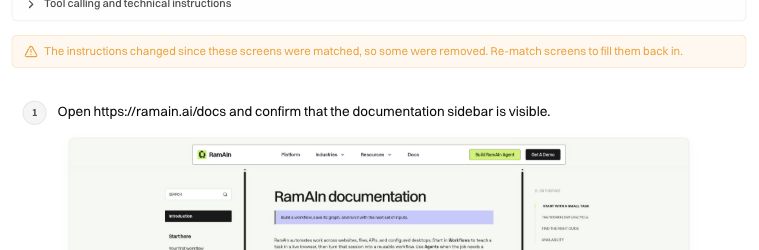
Open https://ramain.ai/docs and confirm that the documentation sidebar is visible.
Finish the edit by leaving the field, then wait for Saved in the editor toolbar. Direct wording edits do not need an Editor-chat model turn. Use Editor chat when the change also requires a new input, a parser, a branch, or coordinated changes across multiple blocks.
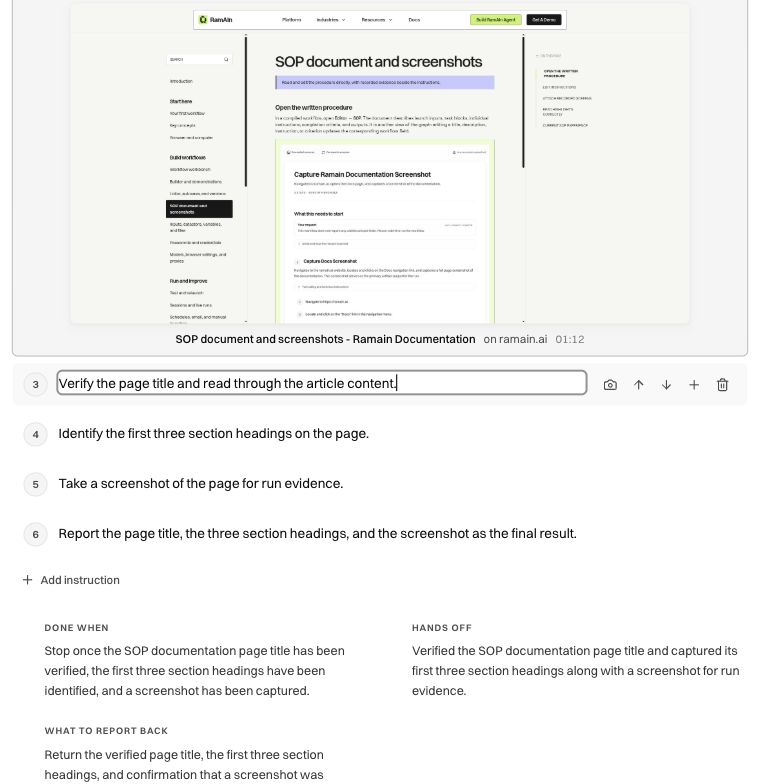
The instruction controls let you:
- Attach a recorded screen with the camera control.
- Move up or Move down to change the order. An instruction's existing screenshots move with it.
- Add an instruction below, insert before an instruction, or use Add instruction at the end.
- Delete this instruction when that action is no longer part of the procedure.
Keep one coherent action or verification per instruction. “Open the account, change the amount, submit it, and check the result” is hard to illustrate and review as one step. Separate the navigation, data entry, submission, and confirmation when they have distinct screens or failure cases.
Browse the recorded evidence
Select Recorded screens above the document. The drawer contains screens and actions captured during authoring, with titles, timestamps, and action labels where available. Its filters let you focus on screens or particular action types, and search helps find a page or control.
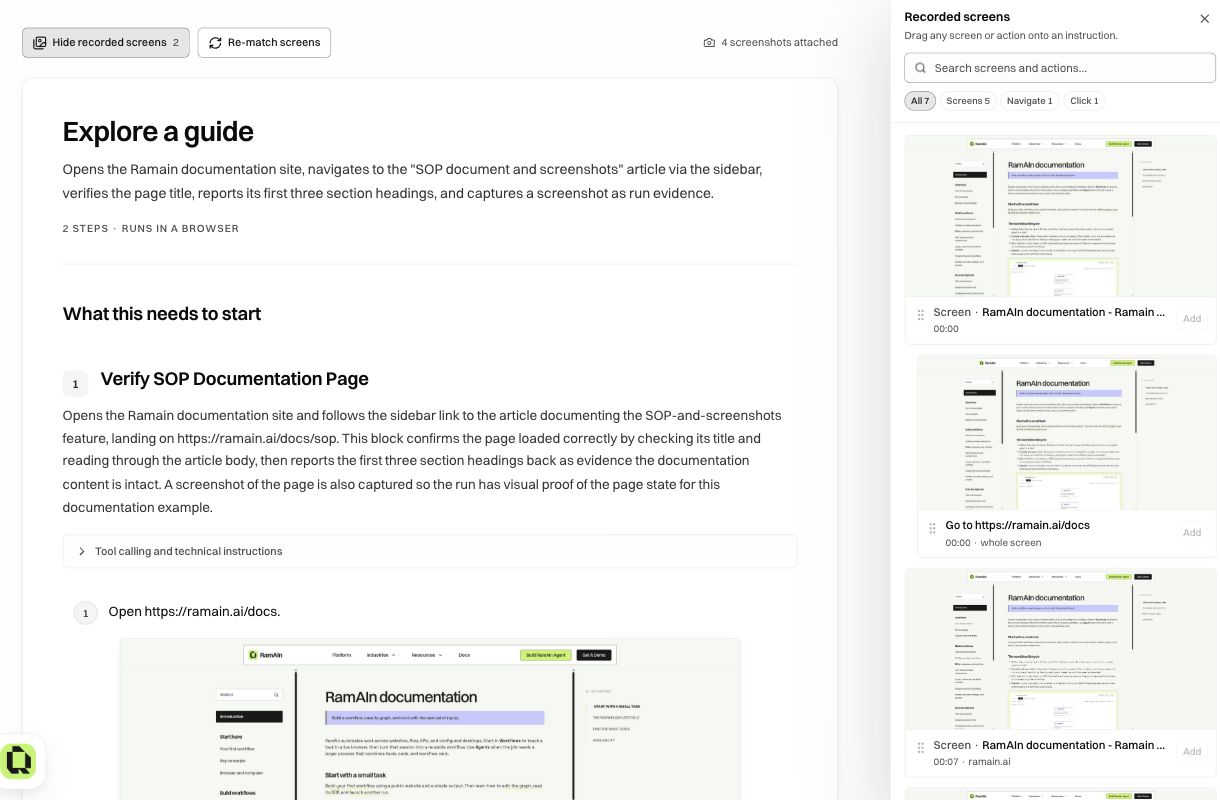
A screenshot is a record of a past page state. It is not a live preview of the next run. Use the title, timestamp, visible page, and action together to decide whether it belongs beside an instruction. A matching word in the action label alone is not enough: the image must show the relevant control or result.
Attach a screen to a specific instruction
There are two ways to make the relationship explicit:
- Drag a screen or action from Recorded screens onto the intended instruction.
- Select Attach a recorded screen beside that instruction, then choose Add on the desired drawer entry.
For the second method, read the line at the top of the drawer before adding anything. It should say Adding to instruction … and name the correct task. When you open the drawer only to browse, Add buttons can be disabled because no target instruction has been selected.
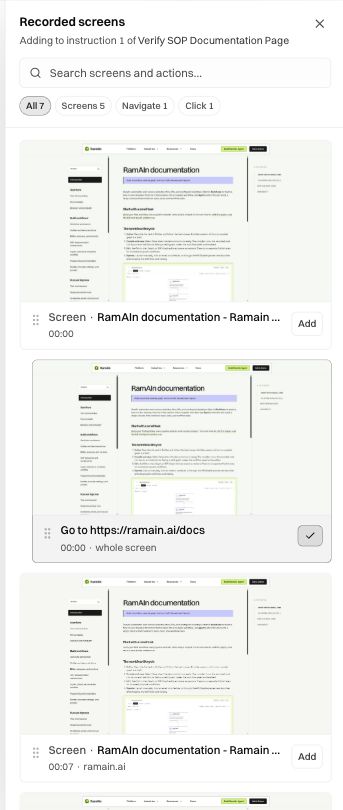
After adding a screen, close the drawer and inspect it in the document. Check that it sits beneath the right instruction and that the caption and image explain that step. Wait for Saved. For our example, the documentation home page belongs with opening the docs; the SOP article belongs with navigating to that article.
To replace poor evidence, use Remove this screenshot on the attachment and then add a more suitable screen. Removing an attachment changes the instruction's evidence; it does not erase the procedure's text. A whole-screen entry can be more useful than an action entry when an action label is misleading.
Re-match after a broader edit
Re-match screens asks the matching process to associate the recorded evidence with the current instructions again. Use it after substantial wording or structural changes, then review the result. It is a starting point for evidence placement, not a substitute for checking each important step.
Edits made through chat or elsewhere in the graph can cause existing evidence to be marked stale. For example, changing “open the SOP article” to “open the guide supplied by the operator” broadens the instruction, while the old screenshot still shows only the SOP article. Keep it as an explicitly understood example where appropriate, or replace it with better evidence for the revised procedure.
Check image size, highlights, and completeness
Open a screenshot to inspect the full image when a label is too small. Screens retain their natural aspect ratio so a highlight stays aligned with the original control. A highlight should point to the action described by the instruction; it should not be accepted merely because an image is present.
Before using the SOP for training or review, verify:
- A reader can follow the written sequence without relying on chat history.
- Screens show the important starting state, difficult choice, submitted values, or successful result.
- Each attached image supports its own instruction, rather than repeating the same generic page everywhere.
- Completion criteria explain how to distinguish success from a page that merely opened.
- The toolbar reports that your edits are saved.
If screens are missing or incorrect
The former generated Visual SOP slideshow is retired from the main UI. Older settings or history may still mention it. You do not need to generate a slideshow to read, edit, or illustrate the current SOP document.
Was this page helpful?