
Integrations and chat
Distinguish a workspace connection from your personal identity, connect account tools, and configure remote MCP servers.
Choose the integration category
Open Integrations in the intended workspace. The page groups connections by what they do:
Workspace connection management requires the appropriate administrative role. A person can have access to view a status without being allowed to connect or disconnect a provider. Check the workspace selector first when a connection appears missing.
Read workspace and personal status separately
A chat-channel card shows the provider's workspace state and Your identity. Both matter. A bot can be active while your personal account is not yet linked.
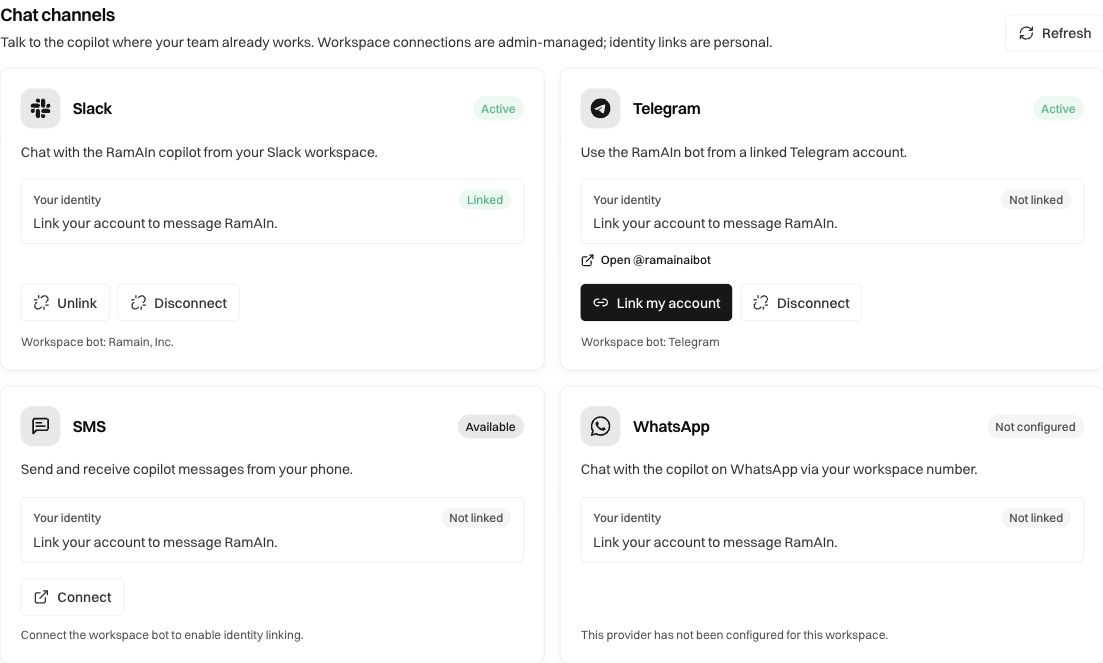
Connect a chat channel
An administrator starts the provider's supported Connect flow, selects the intended external workspace/account, and reviews the requested access. Return to RamAIn and confirm the card reports a successful connection.
Each person then completes Link my account where offered. Follow the displayed provider instructions and verify Your identity: Linked afterward. A link that opens a bot, such as Telegram's bot link, is an entry point; it is not by itself proof that your identity has been linked.
Use a simple scoped question to test the connection, such as asking about a known workflow you can access. A connected channel does not grant access to every workflow, create an email trigger, or authorize arbitrary actions in the external service.
Slack completion notifications configured with a schedule's Incoming Webhook URL are separate from conversational Slack access. Receiving a notification does not establish that a workspace's chat OAuth bot is connected. Configure and test the conversational connection separately from a schedule's notification webhook.
Connect an account for agent tasks
In Agent connections, inspect the provider and supported capabilities. Connect through the offered OAuth or account-management flow and confirm the returned state. If the card says OAuth is not configured, your administrator must provision that capability before a user can authorize an account.
For example, Manage OneDrive opens the file-integration surface where available. Connecting a file account does not copy its entire contents into every workflow. Use the intended workflow's Datastore → Import, select a document, and check the imported contents. See Inputs and datastore.
Keep the selected account, workspace, and intended resource aligned. When a file or tool is missing, check authorization and resource access before assuming the workflow's instructions are wrong.
Add a remote MCP server
Under MCP servers, select Add MCP server. The dialog asks for the server name, endpoint URL, transport, and optional authentication header.
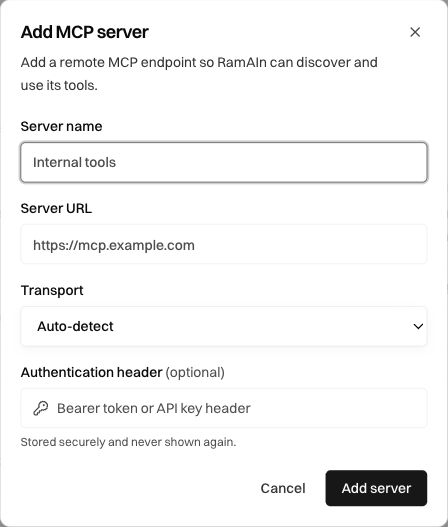
Select Add server when the configuration is correct. Then inspect connection status and discovered tools. A saved server entry is not proof that its endpoint is reachable or that its tools are authorized. Resolve endpoint, transport, or authentication errors before building a task around a missing tool.
The dialog states that the authentication header is stored securely and not shown again. Keep its value out of ordinary prompts and screenshots. Use a real endpoint supplied for your workspace; the placeholder URL is an example, not a service to connect to.
Use RamAIn chat in the product
Open Chat or the floating RamAIn chat control for workspace assistance. Name the workflow or run and ask a precise question, such as “Which inputs did this run use?” This is distinct from Builder, which records a demonstration, and Editor, which changes a compiled workflow.
Where the chat offers Ask first and Auto-run, choose the execution behavior deliberately. Ask first keeps an approval step before executing automations; Auto-run allows the supported automation execution behavior without that per-action question. Read the selected mode before asking chat to run a task.
Chat and agent turns can consume credits. Scope requests to the records and actions you actually need, and inspect the resulting run when chat launches an automation.
Recover or disconnect
Use Refresh to update a category's displayed state. If authorization expired, reconnect through the provider's flow and verify the intended account. Avoid using guessed callback URLs or creating a duplicate connection to work around an unexplained state.
Before Disconnect, identify dependent imports, tools, agents, and channel users. Use Unlink when only your own channel identity should be removed. After a change, test the relevant capability again; a working chat channel and a working datastore import are separate checks.
Was this page helpful?