
Test and relaunch
Test the saved definition with ordinary, alternative, and missing inputs, then compare the actual results.
Start with an enabled, saved definition
Open Workflows, find the workflow, and check its state. Launch starts an enabled workflow. A draft needs a compiled graph; a disabled workflow must be re-enabled before it accepts new launches. Permissions, missing configuration, credits, and input validation can also block a launch, so read the reported reason.
Before launching, decide what success means for this test. For Explore a guide, success means the exact requested guide opens and the output contains its title, URL, and first three section headings. “The browser started” is not enough.
Supply the launch inputs
Select Launch and answer the fields the workflow asks for. A supplied value passes through the workflow's input and parser steps. Some launch sources supply these values up front, so the interactive questions may not appear on every run.
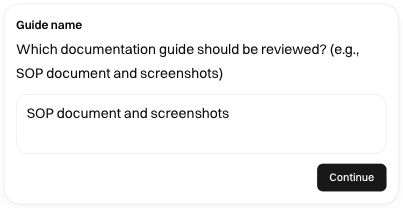
For a request or file input, provide the complete request and use the supported attachment path. A local filename alone does not make the file available to a cloud browser. For API launches, follow the selected workflow's schema instead of assuming it accepts the same fields as another workflow.
Watch the first run closely
During execution, compare the current step with the visible browser. A parser step should resolve the intended value; a browser task should act on that resolved value. Read a human prompt carefully and answer the current question before expecting the run to continue.
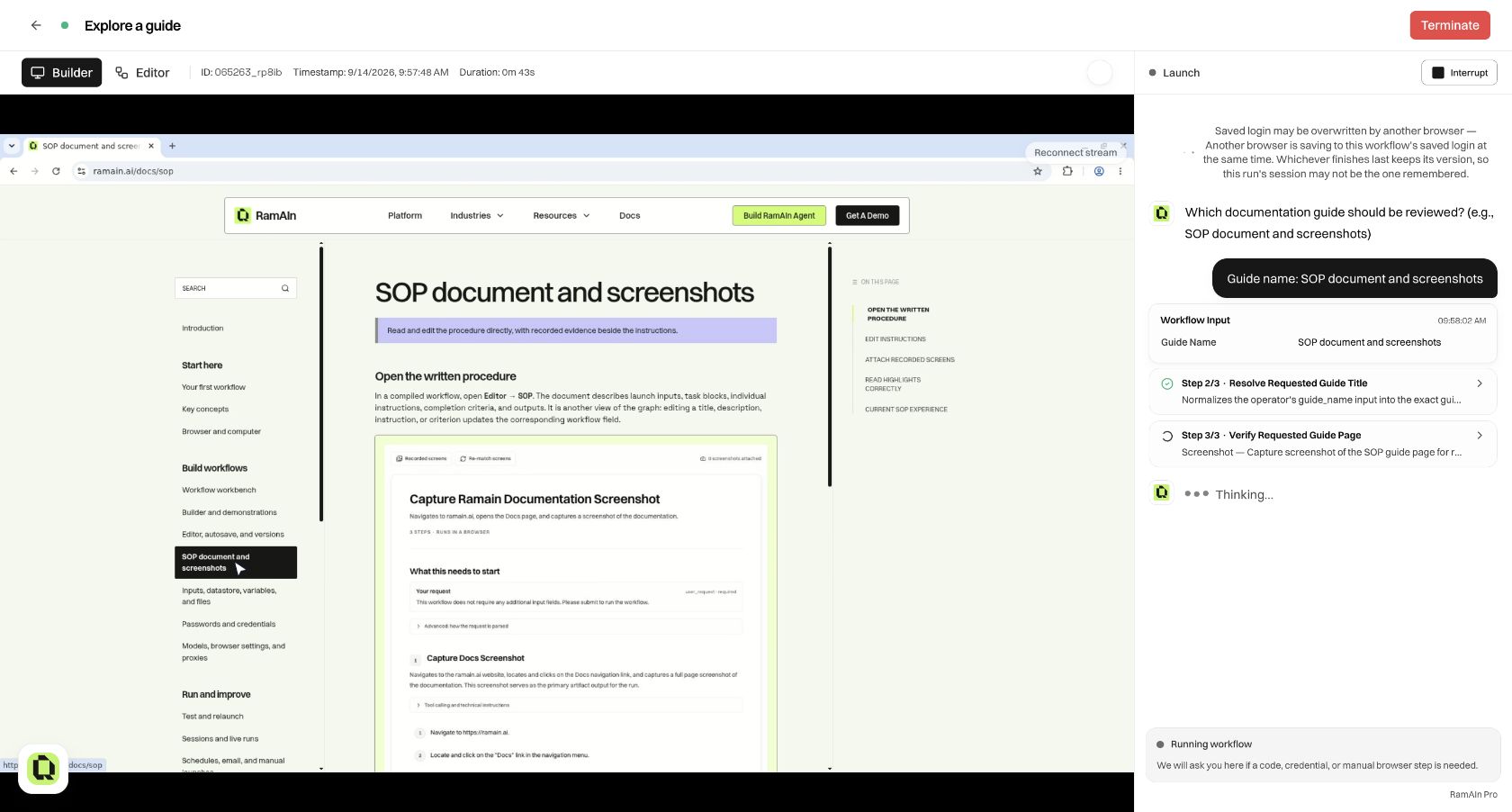
After completion, inspect Final output and verify the target application's result. A test can perform real actions, so use a controlled destination for workflows that send communications or change records. For a read-only guide review, compare the returned title and headings with the article itself.
Test the cases that change behavior
Use a small test matrix instead of repeatedly running the same happy path:
For a business workflow, replace these with its actual boundaries: an existing versus new customer, an empty search, an expired sign-in, a missing attachment, or an approval that is declined. Check each branch's output as well as its selected path.
Re-run a previous session's values
Open History, select the source session, and use Run with the same data in the Session log rail. This creates a new run using compatible input values recorded by the source run.
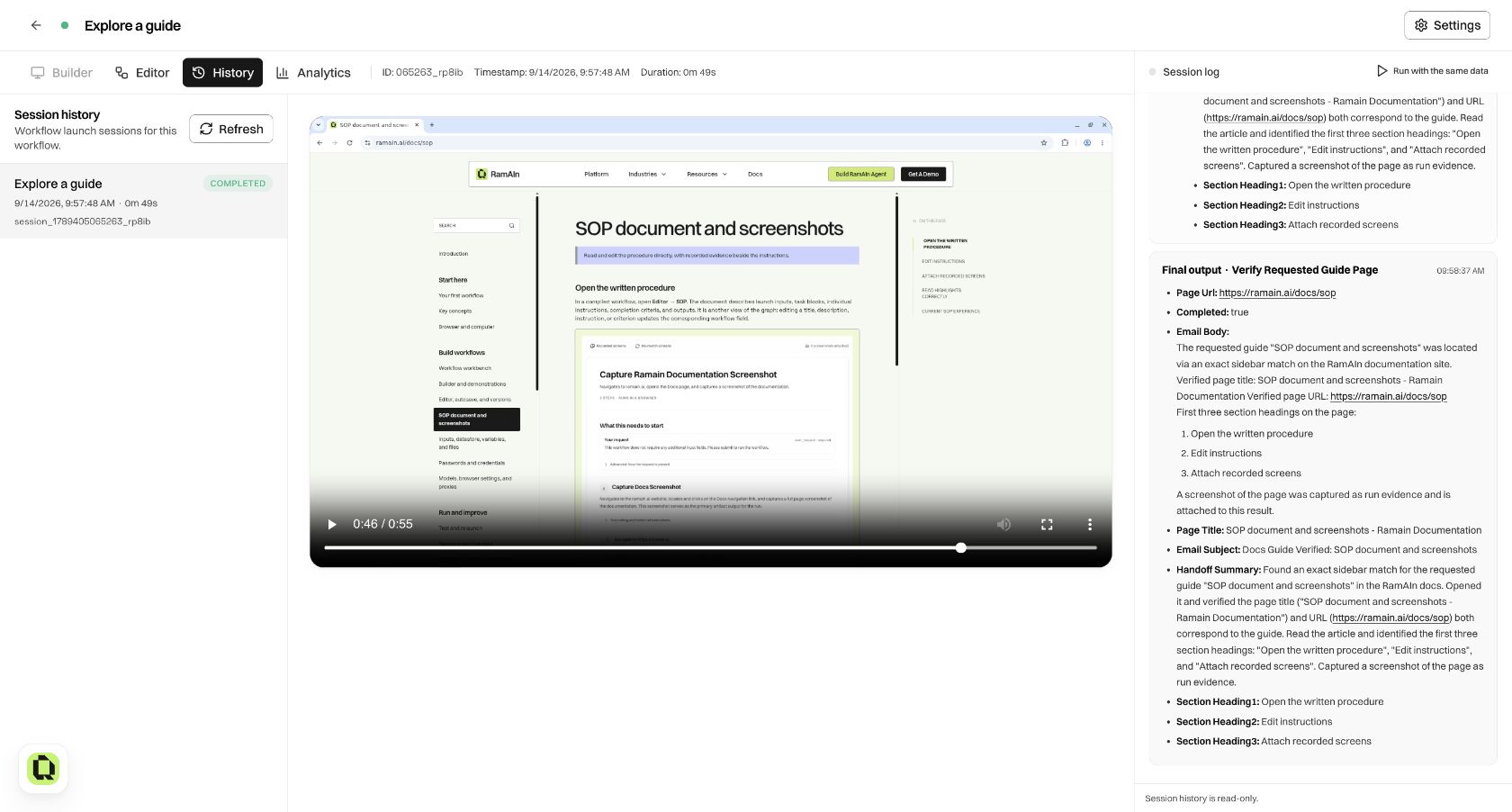
The input parser runs again. This is not a replay of the old browser video, a replay of old clicks, or a bypass of validation. Values for fields removed from the current input schema are not reused. If the workflow gained required fields or its parser changed, the new run may need additional information or produce a different interpretation.
The control becomes Watch live while the new run is available to watch. Opening the old History record remains read-only. Reusing inputs can repeat external side effects, so make sure you intend the task to execute again.
Compare before and after an edit
Keep the source inputs constant when checking a focused change. For example, after applying an Optimize proposal, run with the same guide name and compare the final title and headings. Then try another guide to ensure the shortcut stayed parameterized.
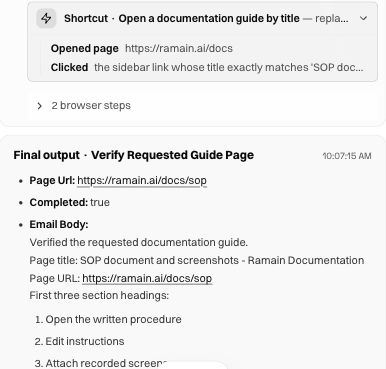
A single duration difference is not a general performance guarantee. Network speed, site state, provider behavior, and retries can vary. First verify correctness, then compare enough representative runs to judge whether the change helps.
Refine a failure into a specific edit
Record the input, expected behavior, actual result, and first step where they diverged. Use History and Sessions to inspect evidence, then drift and repair or Editor chat to make a focused change. Test the failing case again and include a normal case to check that the repair did not break it.
Older guides may call this Simulate. Testing a workflow is not an additional publication stage; the current lifecycle is save, enable or disable, and launch.
Was this page helpful?