
Schedules, email, and manual launches
Configure the exact event, time, and input values that should start an enabled workflow.
Choose how the workflow should start
First build and manually test a saved, enabled workflow. Then open Triggers in the workspace sidebar, stay on the Workflows tab, and search for the workflow you want to configure. The right-hand panel offers API, Manual, Event, and Schedule.
Every source still needs the workflow to be available. Disabling a workflow pauses new launches across all sources. Some trigger panels retain a Published badge for a saved definition; the workflow lifecycle itself uses Draft, Enabled, and Disabled and does not require a separate publish action.
Set up a daily schedule
Choose Schedule for the selected workflow. In Set up a Schedule, choose Daily, enter the Time of day, and select the Time zone. Then fill Workflow inputs with the values each scheduled run should receive.
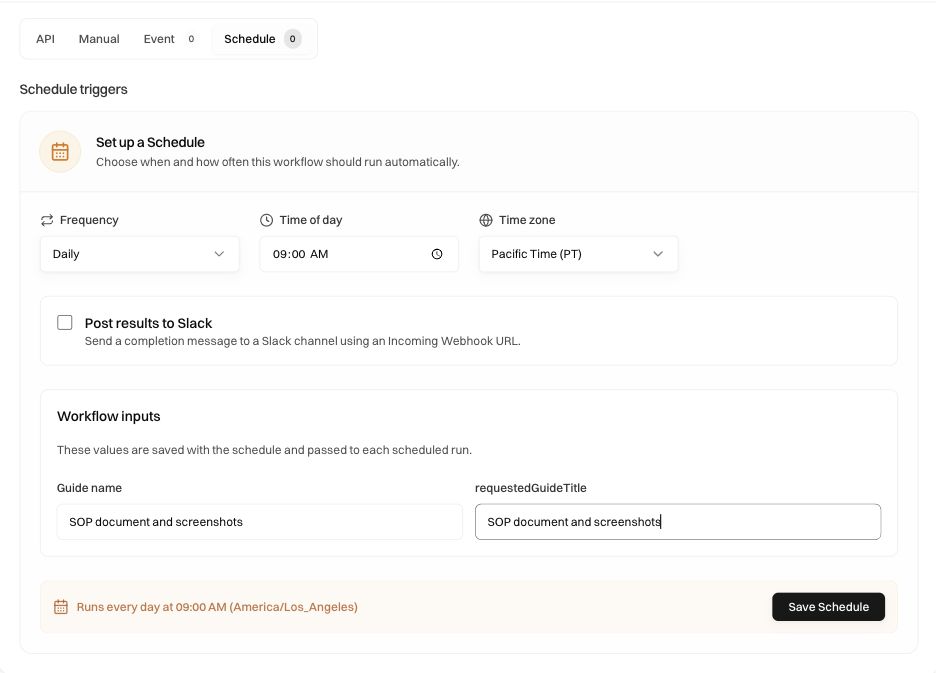
For example, to review the SOP guide every morning, choose 09:00 in Pacific Time and enter SOP document and screenshots for the required guide values shown by this workflow. The fields are derived from the selected definition, so use your own workflow's labels and required fields rather than copying keys from an unrelated example.
Read the sentence near Save Schedule before saving. It should describe the intended cadence, local time, and timezone. Choosing a timezone is essential when “9 AM” means a business location rather than the browser operator's location. If daylight-saving changes matter to the task, verify the next occurrence shown by the saved schedule around the relevant date.
Select Save Schedule when the configuration is ready, then inspect the saved trigger's state and next occurrence. Saving a form and observing a successful scheduled run are separate checks. After the first occurrence, open the resulting session and confirm its input values and final output.
Choose weekly, monthly, or hourly repetition
The Frequency picker also offers Hourly, Weekly, and Monthly. Its additional fields change with the selected cadence.
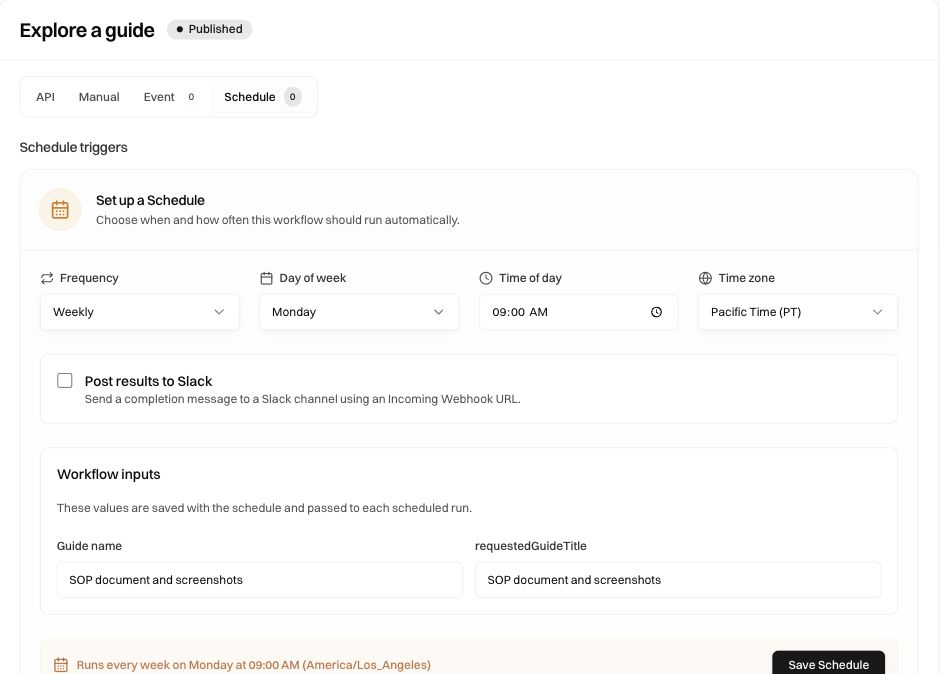
For a Monday review, select Weekly → Monday, set the time and timezone, and verify the sentence says Monday. For a monthly task, inspect the day-of-month choice and the displayed schedule rather than assuming “monthly” means every thirty days. For hourly work, check the timing controls and summary before saving.
The Workflow inputs section is persistent schedule configuration. It does not automatically ask a person for new values on each occurrence. If a value should change with the date or incoming business data, make that behavior explicit in the workflow instead of saving an old example value and expecting it to update itself.
Post results to Slack is an optional completion notification using a Slack Incoming Webhook URL. It is separate from launching a workflow through a Slack chat integration. Configure the intended notification destination only if you want those runs to post there, and verify the first delivered result.
Configure an email subject trigger
Choose Event. The email-trigger form shows the team's inbox address, Subject contains, the variables the workflow needs, and Extraction instructions.
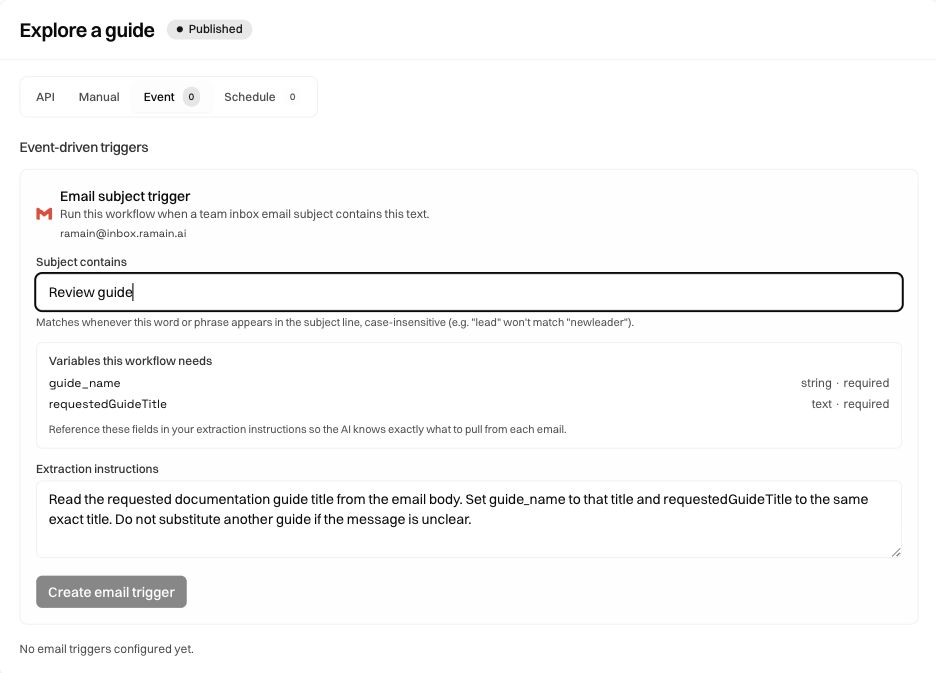
For the guide-review example:
- Enter Review guide in Subject contains.
- Read Variables this workflow needs. Here they include
guide_nameandrequestedGuideTitle. - Explain where each value appears in the email and what the extractor should do if the message is unclear.
- Select Create email trigger when the configuration is ready.
A useful extraction instruction is:
Read the requested documentation guide title from the email body. Set guide_name to that title and requestedGuideTitle to the same exact title. Do not substitute another guide if the message is unclear.
The subject match is case-insensitive and follows the word/phrase behavior described in the form. The UI's example notes that lead does not match newleader. Use a specific phrase that identifies the intended messages; a very broad subject rule can match unrelated mail.
A controlled test message could contain:
Subject: Review guide — documentation check

Please review this guide:
SOP document and screenshots
Send your test to the inbox address shown in your own workspace. Confirm the message arrived, inspect whether it matched the trigger, then open the resulting run and compare its parsed fields with the email. An email's arrival alone does not prove a run started.
Use attachments and handle missing information
When email includes PDFs or images, describe which information to extract from each source. For example, specify whether an account number comes from the email body or the attached application, and what to do if they disagree. The workspace's Email Parser Model setting applies to future email launches; see Settings.
Do not write “extract all needed data” and leave the mapping implicit. Name the workflow fields and describe their meaning. Missing required fields, unsupported or unreadable attachments, and ambiguous extraction can prevent the intended execution even when subject matching is correct.
Inbox explains the message record and the sequence from receipt to run. Test the ordinary case and a message missing one required value before relying on the trigger for unattended work.
Understand triggers shown in the graph
An email or schedule trigger can also appear as a block in a compiled graph. It describes how the workflow starts; it is not an action that executes between browser tasks. Saving a graph synchronizes its graph-managed trigger configuration. Triggers created independently on the Triggers page remain independently managed.
An incomplete in-graph trigger can prevent a draft from becoming runnable. Explicit Save reports the validation issue. Autosave may retain the graph as a draft so you can finish the configuration. Complete the missing trigger fields and save again, then verify the workflow's availability.
Pause, resume, and diagnose a missing launch
Disable a specific trigger when only that source should pause. Disable the workflow when all new launch sources should pause. Already active runs may finish. Re-enabling does not promise that every missed historical occurrence will be replayed; inspect the next occurrence and actual session history.
Was this page helpful?