
Workflow API quickstart
Copy the workflow's schema, launch one execution from your server, and follow its result.
The Workflow API starts an enabled saved workflow with explicit inputs. Use it when another service should request work and retain a run identifier for tracking. The example below uses the same Explore a guide workflow as the UI quickstart, with placeholder credentials and identifiers.
1. Use the application and API for your workspace
Your key, workflow, and run identifiers must belong to the intended workspace. Use that workflow's actual generated schema; changing an identifier does not authorize access to another workspace.
2. Select the workflow and inspect its inputs
Build and save the workflow, test its output in the app, and confirm that it is Enabled. Open Resources → API Docs in the same app environment and select that workflow.
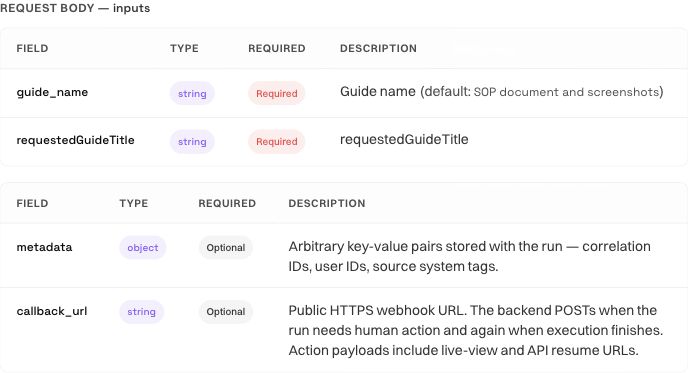
Read the required fields, types, and generated example together. For this version, the API schema requires guide_name and requestedGuideTitle; both use the exact requested guide title. Another workflow may expose different fields. An input key that sounds plausible is still invalid if the graph does not declare it.
If you change the workflow's input schema later, update the calling service before it submits another request. Adding text under metadata does not supply a missing required input.
3. Prepare a scoped key
Open Resources → API keys where your role permits it. The caller needs workflows:run to launch and runs:read to inspect status, events, and results. Store the key in the server environment or secret manager used by your integration.
Pass it in the Authorization: Bearer ... header. Do not put it in the request URL, client-side JavaScript, screenshots, or a public issue. The generated documentation example uses a token placeholder; replace it in your server configuration.
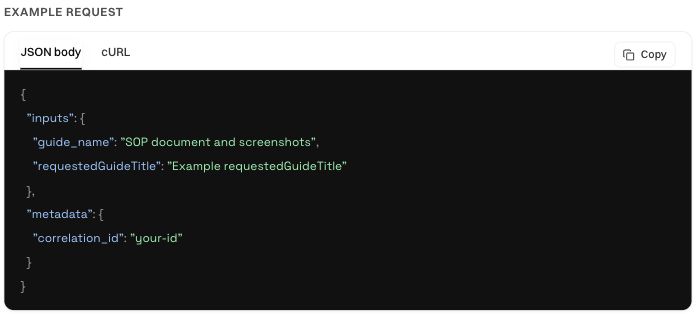
4. Launch once and retain the run ID
Set the following values in your server-side environment. Replace YOUR_WORKFLOW_ID with the workflow selected in API Docs. Set RAMAIN_API_KEY securely before running the command.
export RAMAIN_API_BASE='https://api.ramain.ai/api/v1'
export RAMAIN_WORKFLOW_ID='YOUR_WORKFLOW_ID'
export RAMAIN_REQUEST_ID='guide-review-request-001'

curl --fail-with-body --request POST \
  "$RAMAIN_API_BASE/automations/$RAMAIN_WORKFLOW_ID/runs" \
  --header "Authorization: Bearer $RAMAIN_API_KEY" \
  --header "Idempotency-Key: $RAMAIN_REQUEST_ID" \
  --header 'Content-Type: application/json' \
  --data '{"inputs":{"guide_name":"SOP document and screenshots","requestedGuideTitle":"SOP document and screenshots"}}'
Choose a new request ID for each intended execution. Reuse the same ID and body when retrying a request whose response was lost. This avoids treating a network retry as new work. Reusing the key with changed inputs produces a conflict rather than silently changing the original request.
An accepted asynchronous launch returns HTTP 202 with a run_id and HTTPS links for status, result, and events. Record that ID alongside your own request identifier. Acceptance means the request was accepted for execution; it does not mean the browser task has finished.
5. Follow that execution
Set RAMAIN_RUN_ID to the ID returned by launch. Poll the status endpoint with a delay and backoff, respecting rate-limit guidance.
export RAMAIN_RUN_ID='RUN_ID_FROM_LAUNCH'

curl --fail-with-body \
  "$RAMAIN_API_BASE/runs/$RAMAIN_RUN_ID" \
  --header "Authorization: Bearer $RAMAIN_API_KEY"
The status tells you whether to keep waiting, arrange human input, or retrieve a terminal result. session_id and live_view_url can be null while the runtime is still being allocated. A live-view URL opens the portal for an authorized signed-in user; the API key does not act as a portal login.
If the run is waiting for a person, inspect its human_action and current checkpoint. Answer through the live session or the human-input API. Launching again creates another execution and does not answer the waiting one.
6. Read and verify the result
curl --fail-with-body \
  "$RAMAIN_API_BASE/runs/$RAMAIN_RUN_ID/result" \
  --header "Authorization: Bearer $RAMAIN_API_KEY"
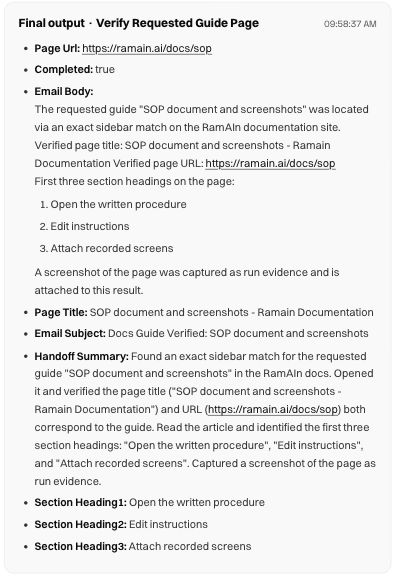
The result endpoint returns 202 while the run is nonterminal and 200 once terminal. HTTP 200 can also accompany a failed, cancelled, terminated, or expired-wait execution. Inspect status, error, and the workflow-specific outputs before marking your own request successful.
For the guide example, check the actual returned URL, page title, and headings against the guide requested. Output field names depend on the saved graph. A field named email_body is formatted text; it does not prove that an email was sent. Use returned file/download references when the workflow produces files rather than constructing a storage URL yourself.
7. Add events and callbacks when needed
GET /runs/{runId}/events returns a JSON event snapshot, not a server-sent-event stream. Use it to inspect progress and diagnose a failed or waiting run.
An optional callback_url supplies a public HTTPS receiver for run notifications. Handle duplicate callback delivery safely, inspect the run status, and retain polling as a fallback. A callback endpoint needs to accept requests from the service; a private localhost address is not a public receiver.
The API reference covers the launch body, idempotency, human checkpoints, file inputs, callback behavior, and common errors. Keep the environment's generated OpenAPI schema as the exact contract for your selected workflow.
Embed a live browser or use the SDK
The new Browser SDK and embedded viewer guide explains short-lived grants, exact origins, iframe setup, permitted methods, acknowledged interruptions, and human checkpoint responses. Use the gateway in the same environment as the run. The guide distinguishes short-lived embedded access from portal live-view links that require workspace sign-in.
Was this page helpful?